Automate blog content creation with Notion MCP DeepSeek AI and
!Workflow Screenshot Who Is This For This workflow is ideal for content creators, bloggers, marketers, and professionals seeking to automate the creation and...
🔌 Nodes & Integrations Used (6)
📖 Implementation & Setup Guide
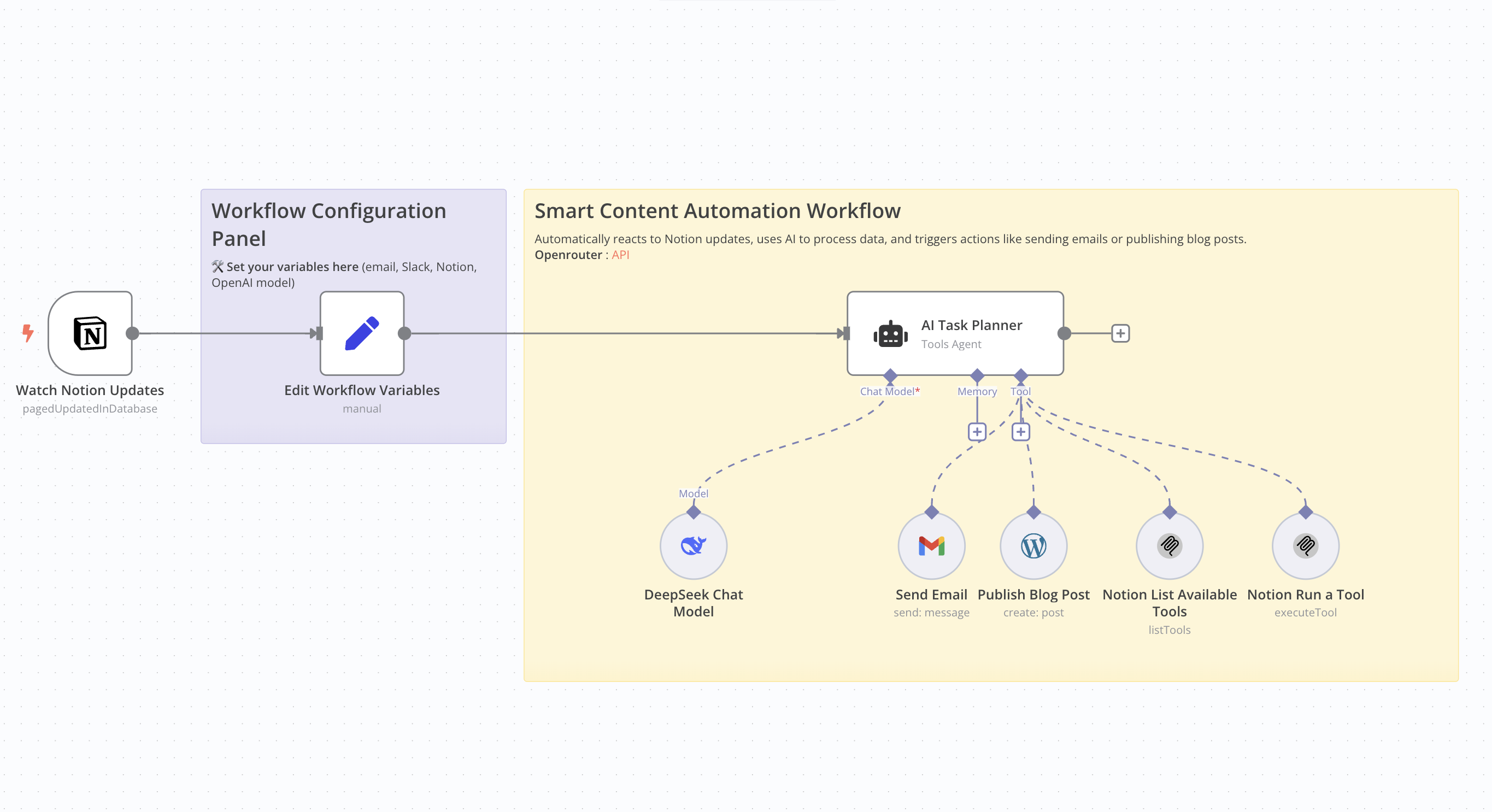
Who Is This For This workflow is ideal for content creators, bloggers, marketers, and professionals seeking to automate the creation and publication of SEO-optimized articles. It's particularly beneficial for those utilizing Notion for content management and WordPress for publishing.
What Problem Does This Workflow Solve Manually creating SEO-friendly articles is time-consuming and requires consistent effort. This workflow streamlines the entire process—from detecting updates in Notion to publishing on WordPress—by leveraging AI for content generation, thereby reducing the time and effort involved.
What This Workflow Does - Monitor Notion Updates: Detects changes in a specified Notion database. - AI Content Generation: Utilizes an AI model to produce an SEO-optimized article based on Notion data. - Publish to WordPress: Automatically posts the generated article to a WordPress site. - Email Notification: Sends an email containing the article's title and URL.
Update Notion Database: Updates the corresponding entry in the Notion database with the article details.
Setup Guide ## Prerequisites - WordPress account with API access. - API key for the AI model used. - Notion integration with the relevant database ID. - Credentials for the email service used (e.g., Gmail).
Community Node Requirement: This workflow utilizes the n8n-nodes-mcp community node, which is only compatible with self-hosted instances of n8n. For more information on installing and managing community nodes, refer to the n8n documentation. n8n Docs
Steps 1. Import the workflow into your self-hosted n8n instance. 2. Install the required community node (n8n-nodes-mcp). 3. Configure API credentials for WordPress, the AI service, Notion, and the email service. 4. Define necessary variables, such as the notification email address and Notion database IDs. 5. Activate the workflow to automate the process.
How to Customize This Workflow - AI Prompt: Adjust the prompt used for content generation to align with your preferred tone and style. - Article Structure: Modify the structure of the generated article by tweaking settings in the content generation node. - Notifications: Customize the content and recipients of the emails sent post-publication. - Notion Updates: Tailor the fields updated in Notion to suit your specific requirements.
⚡ How to import this workflow into n8n:
- Click the Direct Download JSON button above to save
Automate_blog_content_creation_with_Notion_MCP_DeepSeek_AI_and.json. - Log in to your n8n Cloud or self-hosted n8n instance.
- In your workflow canvas, click the menu in top-right and select Import from File (or paste the JSON directly).
- Configure your credentials (e.g. API keys, database URLs) in the corresponding node settings.
- Click Execute Workflow to test and switch to Active!
Related AI Agents Workflows
View All in AI Agents →5 ways to process images PDFs with Gemini AI in n8n
How it works Many users have asked in the support forum about different methods to analyze images and PDF documents with Google Gemini AI in n8n. This workfl...
7 AI Sales Assistant
Production-ready n8n automation template for 7 AI Sales Assistant built by AhiXLight. Seamlessly connects Airtop Tool, Slack, Airtop with 24 configured nodes.
AAVE portfolio professional AI agent Telegram Email GPT 4o
A next-generation AI-powered DeFi health monitor that tracks wallet positions across Aave V3 using GPT-4o and LangChain. It delivers human-readable reports v...
Access control for AI agents RBAC using Airtable and Telegram
Purpose This workflow allows granular control over the access to tools connected to AI Agents (including Multi-Agent setups) using Role Based Access Control....