AI virtual TryOn automated generation for WooCommerce cloth
This AI Agent is designed to streamline the process of creating realistic images of clothing products worn by models, eliminating the need for expensive phot...
🔌 Nodes & Integrations Used (4)
📖 Implementation & Setup Guide
This AI Agent is designed to streamline the process of creating realistic images of clothing products worn by models, eliminating the need for expensive photoshoots. The primary goal is to automate the generation of virtual try-on images for an eCommerce store selling clothing, using advanced image processing technologies.
[Example of results](https://docs.google.com/spreadsheets/d/11ebWJvwwXHgvQld9kxywKQUvIoBw6xMa0g0BuIqHDxE/edit?usp=sharing)
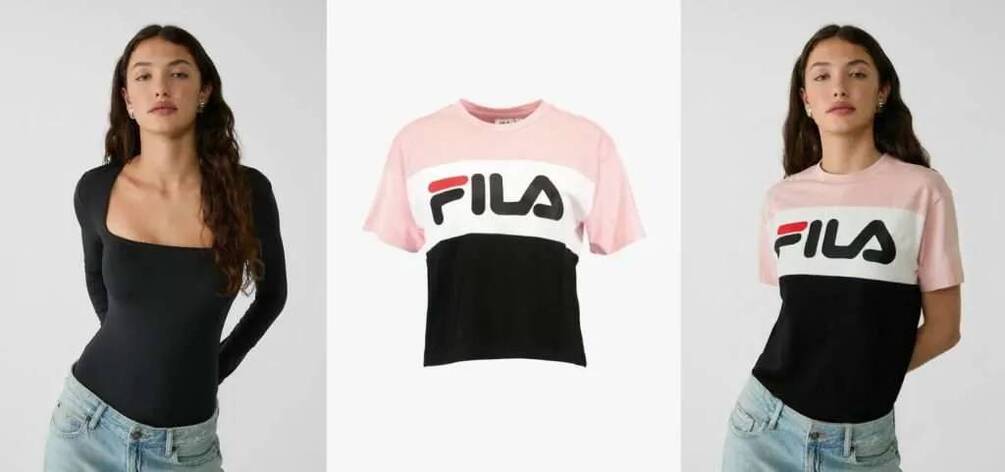
**How It Works** 1. **Triggering the Workflow**: - The workflow can be triggered manually using the **When clicking ‘Test workflow’** node or automatically via the **Schedule Trigger** node, which runs the workflow at regular intervals (e.g., every 5 minutes).
2. **Data Retrieval**: - The **Get new product** node retrieves data from a Google Sheets document containing the URLs of the model image, the clothing product image, and the WooCommerce product ID. The document also includes a column for the resulting virtual try-on image URL, which is initially empty.
3. **Setting Up the Request**: - The **Set data** node prepares the data for the AI request by assigning the model image URL and the product image URL to variables.
4. **AI Image Generation**: - The **Create Image** node sends a request to API to generate a virtual try-on image. The request includes the URLs of the model and the clothing product. When you register for the API service you will get 1$ for free. For continuous work add API credits to your account.
5. **Image Retrieval**: - The **Get Url image** node retrieves the URL of the generated virtual try-on image. - The **Get File image** node downloads the generated image from the provided URL.
6. **Image Storage**: - The **Upload Image** node uploads the generated image to a specified Google Drive folder for storage.
7. **Updating Google Sheets**: - The **Update result** node updates the Google Sheets document with the URL of the generated virtual try-on image.
8. **Updating WooCommerce**: - The **Update product** node updates the corresponding product in WooCommerce by adding the generated virtual try-on image to the product's image gallery.
---
**Functionality** This AI Agent is designed to streamline the process of creating realistic images of clothing products worn by models, eliminating the need for expensive photoshoots. The primary goal is to automate the generation of virtual try-on images for an eCommerce store selling clothing, using advanced image processing technologies.
By offering realistic images of clothing items worn by models, this automation process saves time and resources, making product catalog management more efficient. This approach not only enhances the competitiveness of the eCommerce store but also provides greater flexibility in creating high-quality visual content adaptable to various digital marketing campaigns.
---
**Key Features** - **Automated Virtual Try-On**: Generates realistic images of models wearing clothing items using AI. - **Google Sheets Integration**: Retrieves and updates data in Google Sheets for seamless data management. - **Image Storage**: Uploads generated images to Google Drive for easy access and archiving. - **WooCommerce Integration**: Updates product pages with virtual try-on images, enhancing the shopping experience. - **Scheduled Automation**: Can be triggered manually or run at regular intervals for continuous processing.
This workflow is ideal for eCommerce businesses looking to enhance their product catalogs with high-quality, realistic images without the need for costly photoshoots. It leverages AI to provide a cost-effective and efficient solution for virtual try-on image generation.
⚡ How to import this workflow into n8n:
- Click the Direct Download JSON button above to save
AI_virtual_TryOn_automated_generation_for_WooCommerce_cloth.json. - Log in to your n8n Cloud or self-hosted n8n instance.
- In your workflow canvas, click the menu in top-right and select Import from File (or paste the JSON directly).
- Configure your credentials (e.g. API keys, database URLs) in the corresponding node settings.
- Click Execute Workflow to test and switch to Active!
Related Ecommerce & Sales Workflows
View All in Ecommerce & Sales →Add new customers from WooCommerce to Mautic
This workflow uses a WooCommerce trigger that will run when a new customer has been added, It will then add the customer to Mautic. To use this workflow you ...
Add new products to Stripe when product added to Pipedrive
This workflow adds a new product in Stripe whenever a new product has been added to Pipedrive. Prerequisites - Stripe account and Stripe credentials - Pipedr...
Add product ideas to Google Sheets via a Slack
Use Case This workflow is a slight variation of a workflow we're using at n8n. In most companies, employees have a lot of great ideas. That was the same for ...
Add product ideas to Notion via a Slack command
Use Case In most companies, employees have a lot of great ideas. That was the same for us at n8n. We wanted to make it as easy as possible to allow everyone ...