AI Chatbot Agent with a Panel of Experts using InfraNodus GraphR
Using the knowledge graphs instead of RAG vector stores This workflow creates an AI chatbot agent that has access to several knowledge bases at the same time...
🔌 Nodes & Integrations Used (5)
📖 Implementation & Setup Guide
Using the knowledge graphs instead of RAG vector stores
This workflow creates an AI chatbot agent that has access to several knowledge bases at the same time (used as "experts").
These knowledge bases are provided using the InfraNodus GraphRAG using the knowledge graphs and providing high-quality responses without the need to set up complex RAG vector store workflows.
The advantages of using GraphRAG instead of the standard vector stores for knowledge are:
- Easy and quick to set up (no complex data import workflows needed)
- A knowledge graph has a holistic view of your knowledge base
- Better retrieval of relations between the document chunks = higher quality responses
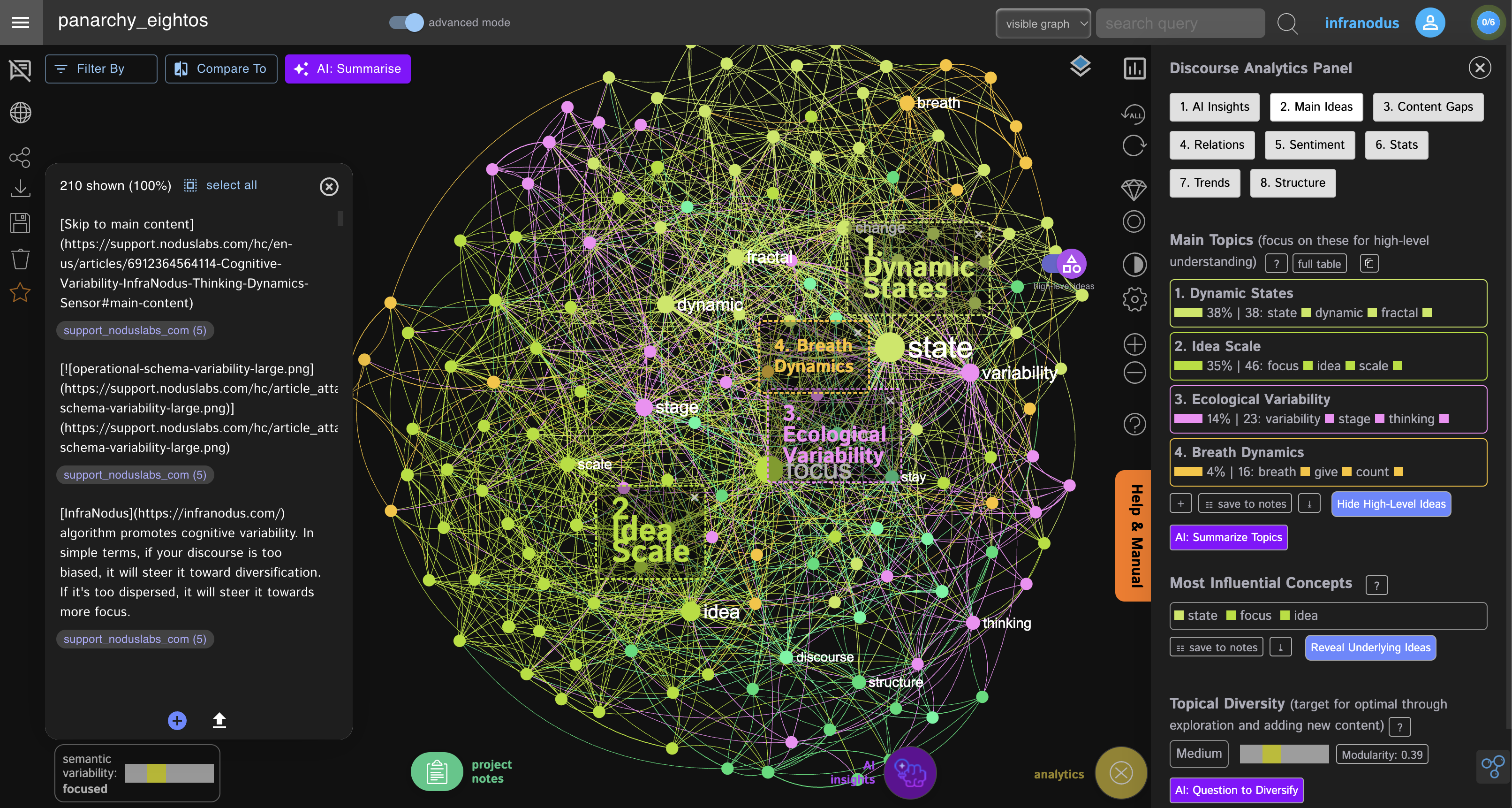
How it works This template uses the n8n AI agent node as an orchestrating agent that decides which tool (knowledge graph) to use based on the user's prompt.
Here's a description step by step:
- The user submits a question using the AI chatbot (n8n interface, in this case, which can be accessed via a URL or embedded to any website)
- The AI agent node checks a list of tools it has access to. Each tool has a description of the knowledge it has auto-generated by InfraNodus.
- The AI agent decides which tool should be used to generate a response. It may reformulate user's query to be more suitable for the expert.
- The query is then sent to the InfraNodus HTTP node endpoint, which will query the graph that corresponds to that expert.
- Each InfraNodus GraphRAG expert provides a rich response that takes the whole context into account and provides a response from each expert (graph) along with a list of relevant statements retrieved using a combination or RAG and GraphRAG.
- The n8n AI Agent node integrates the responses received from the experts to produce the final answer.
- The final answer is sent back to the user's chat (or a webhook endpoint)
How to use
You need an [InfraNodus GraphRAG API account and key](https://infranodus.com/use-case/ai-knowledge-graphs) to use this workflow.
- Create an InfraNodus account
- Get the API key at [https://infranodus.com/api-access](https://infranodus.com/api-access) and create a Bearer authorization key for the InfraNodus HTTP nodes.
- Create a separate knowledge graph for each expert (using PDF / content import options) in InfraNodus
- For each graph, go to the workflow, paste the name of the graph into the `body` `name` field.
- Keep other settings intact or learn more about them at the [InfraNodus access points](https://support.noduslabs.com/hc/en-us/articles/13605983537692-InfraNodus-API-Access-Points) page.
- Once you add one or more graphs as experts to your flow, add the LLM key to the OpenAI node and launch the workflow
Requirements
- An [InfraNodus](https://infranodus.com/use-case/ai-knowledge-graphs) account and API key
- An OpenAI (or any other LLM) API key
Customizing this workflow
You can use this same workflow with a Telegram bot, so you can interact with it using Telegram. There are many more customizations available.
Check out the **complete guide** at [https://support.noduslabs.com/hc/en-us/articles/20174217658396-Using-InfraNodus-Knowledge-Graphs-as-Experts-for-AI-Chatbot-Agents-in-n8n](https://support.noduslabs.com/hc/en-us/articles/20174217658396-Using-InfraNodus-Knowledge-Graphs-as-Experts-for-AI-Chatbot-Agents-in-n8n)
Also check out the **video tutorial** with a demo:
[](https://www.youtube.com/watch?v=kS0QTUvcH6E)
⚡ How to import this workflow into n8n:
- Click the Direct Download JSON button above to save
AI_Chatbot_Agent_with_a_Panel_of_Experts_using_InfraNodus_GraphR.json. - Log in to your n8n Cloud or self-hosted n8n instance.
- In your workflow canvas, click the menu in top-right and select Import from File (or paste the JSON directly).
- Configure your credentials (e.g. API keys, database URLs) in the corresponding node settings.
- Click Execute Workflow to test and switch to Active!
Related AI Agents Workflows
View All in AI Agents →5 ways to process images PDFs with Gemini AI in n8n
How it works Many users have asked in the support forum about different methods to analyze images and PDF documents with Google Gemini AI in n8n. This workfl...
7 AI Sales Assistant
Production-ready n8n automation template for 7 AI Sales Assistant built by AhiXLight. Seamlessly connects Airtop Tool, Slack, Airtop with 24 configured nodes.
AAVE portfolio professional AI agent Telegram Email GPT 4o
A next-generation AI-powered DeFi health monitor that tracks wallet positions across Aave V3 using GPT-4o and LangChain. It delivers human-readable reports v...
Access control for AI agents RBAC using Airtable and Telegram
Purpose This workflow allows granular control over the access to tools connected to AI Agents (including Multi-Agent setups) using Role Based Access Control....