Activate and deactivate workflows on schedule using native n8n A
How it works This workflow will activate and deactivate a selected other workflow on schedule. > ⚠️ Warning! > This approach won't work for trial users...
🔌 Nodes & Integrations Used (1)
📖 Implementation & Setup Guide
How it works This workflow will activate and deactivate a selected other workflow on schedule.
> ⚠️ Warning! > This approach **won't work for trial users** as it requires n8n API that is not available to trial users. > See [https://docs.n8n.io/api/](https://docs.n8n.io/api/) for details.
Set up steps 1. Adjust activation/deactivation **schedule** per your needs. [Custom (cron) interval](https://docs.n8n.io/integrations/builtin/core-nodes/n8n-nodes-base.scheduletrigger/#custom-cron-interval) is a recommended approach. 2. Set targeted **Workflow ID**. You will find it in the URL of the workflow you want to manage. 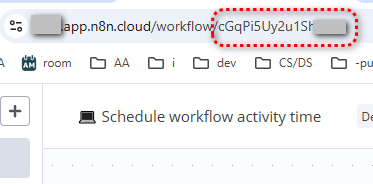 3. Set **n8n API credentials**: - Create an API key: [how to](https://docs.n8n.io/api/authentication/) - Create n8n credentials using the API key: [how to](https://docs.n8n.io/credentials/add-edit-credentials/#create-a-credential)
This workflow uses **[n8n node](https://docs.n8n.io/integrations/builtin/core-nodes/n8n-nodes-base.n8n/)**.
#DevOps #workflow-management
---
Other useful stuff
Need a universal Error workflow to **catch both execution and trigger errors**? Here you go: [Error handling: Send email via Gmail on execution or trigger-level errors](https://n8n.io/workflows/3075-error-handling-send-email-via-gmail-on-execution-or-trigger-level-errors/)
⚡ How to import this workflow into n8n:
- Click the Direct Download JSON button above to save
Activate_and_deactivate_workflows_on_schedule_using_native_n8n_A.json. - Log in to your n8n Cloud or self-hosted n8n instance.
- In your workflow canvas, click the menu in top-right and select Import from File (or paste the JSON directly).
- Configure your credentials (e.g. API keys, database URLs) in the corresponding node settings.
- Click Execute Workflow to test and switch to Active!
Related Calendar & Meetings Workflows
View All in Calendar & Meetings →2-way sync Notion and Google Calendar
This workflow syncs multiple Notion databases to your Google Calendar. And it works both ways. What events are supported? Everything except recurring events....
Acuity Appointment Scheduled Trigger
Production-ready n8n automation template for Acuity Appointment Scheduled Trigger built by AhiXLight. Seamlessly connects Acuity Scheduling Trigger with 1 configured nodes.
Add a event to Google Calendar automatically
Add an event to Google Calendar !workflow-screenshot
Add Event to Google Calendar
Production-ready n8n automation template for Add Event to Google Calendar built by AhiXLight. Seamlessly connects Google Calendar with 2 configured nodes.